How to Reset Your PIN via the Mobile App: A Complete Step-by-Step Guide
The management of Ghana Teachers Fund has outlined step – by – step guide on how to reset your PIN via the Mobile App.
Resetting your PIN on the Teachers Fund mobile app is a simple but secure process designed to protect your account while ensuring easy access.
Whether you have forgotten your PIN or need to update it for security reasons, this guide walks you through each step clearly.
Here are the Steps
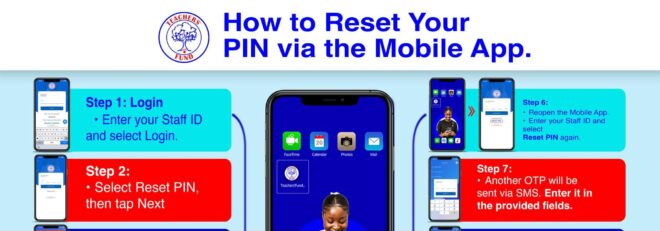
Step 1: Login
Open the techers fund mobile app and enter your Staff ID. Once entered, select Login to access the system. This is the first verification step to confirm your identity.
Step 2: Select Reset PIN
After logging in, choose the Reset PIN option and tap Next. This action signals that you want to begin the PIN recovery process.
Step 3: Security Question
A security question will appear on your screen. Provide the correct answer, the one you set during registration. If you answer incorrectly twice, a pop-up will appear prompting you to Request Special Assistance.
Simply select Request Assistance to proceed if needed.
Step 4: OTP Verification
An OTP (One-Time Password) will be sent to your phone via SMS. Enter the OTP in the provided fields.
Once successful, a confirmation message will appear stating: “Reset request made successfully.”
Step 5: Review and Approval
Your request will then be reviewed and approved. After approval, you will receive an SMS notification confirming: “Your PIN has been reset.”
Step 6: Reopen the App
Next, reopen the mobile app. Enter your Staff ID again and select Reset PIN to continue the process.
Step 7: Enter OTP Again
Another OTP will be sent to your phone. Enter it correctly in the provided fields to proceed.
Step 8: Set a New PIN
You will now be prompted to:
Set a new PIN
Confirm the new PIN
Ensure your PIN is secure and easy for you to remember.
Step 9: Answer New Security Questions
For enhanced security, you will be required to answer new security questions. Choose answers you can easily recall but are hard for others to guess.
Step 10: Completion
Finally, a confirmation pop-up will appear stating: “Your account reset has been completed successfully.” This means your new PIN is now active.

READ ALSO ON
Current Teaching Qualifications by Educational Levels in Ghana
Conclusion
Resetting your PIN via the mobile app is straightforward when you follow the correct steps. Always keep your login details secure and update your PIN regularly for better protection.
Source: quarmsmedia.com